Hotspot
INFO
Please see the Sampling profilers for more information.
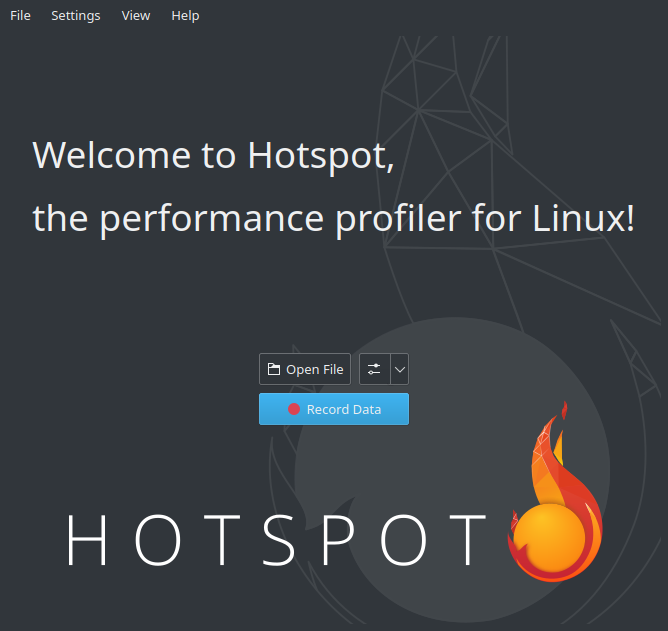
- Open Hotspot. Click Record Data:
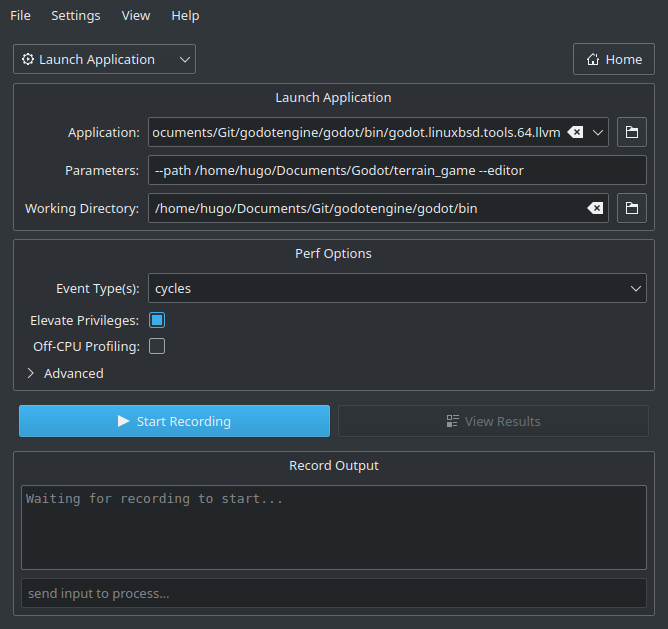
In the next window, specify the path to the Godot binary that includes debug symbols.
Specify command line arguments to run a specific project, with or without the editor.
The path to the working directory can be anything if an absolute path is used for the
--pathcommand line argument. Otherwise, it must be set so that the relative path to the project is valid.Make sure Elevate Privileges is checked if you have administrative privileges. While not essential for profiling Godot, this will ensure all events can be captured. Otherwise, some events may be missing from the capture. Your settings should now look something like this:
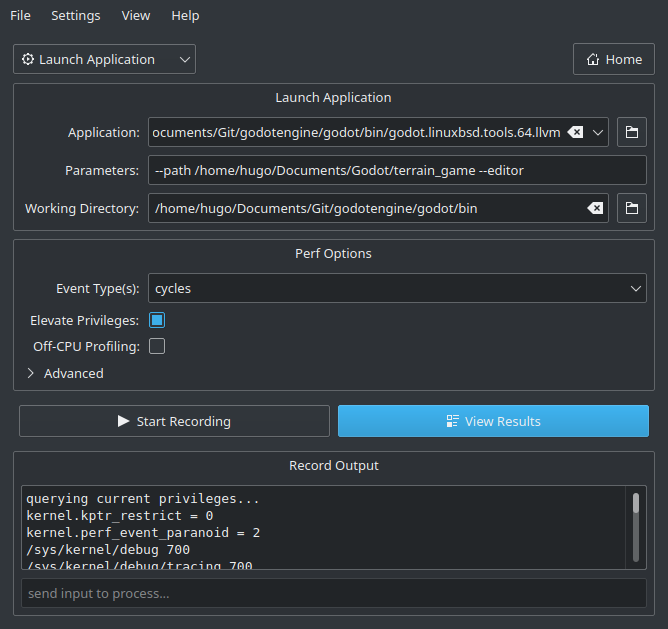
Click Start Recording and perform the actions you wish to profile in the editor/project.
Quit the editor/project normally or use the Stop Profiling button in Hotspot to stop profiling early. Stopping profiling early can result in cleaner profiles if you're not interested in the engine's shutdown procedure.
Click View Results and wait for the profiling visualization to be generated:
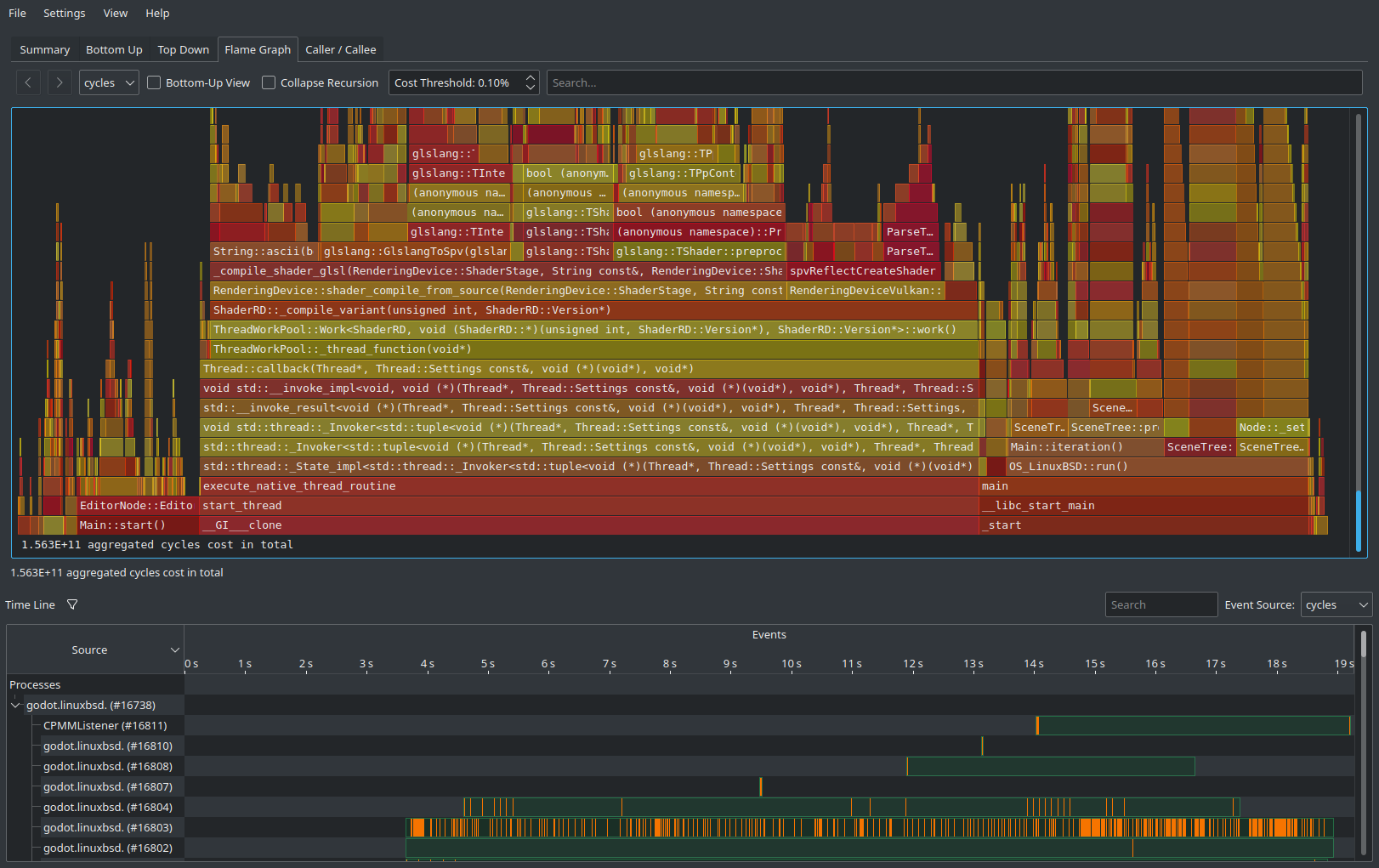
Use the tabs at the top to navigate between the different views. These views show the same data, but in different ways. The Flame Graph tab is a good way to see which functions take up the most time at a glance. These functions are therefore the most important ones to optimize, since optimizing them will improve performance the most.
At the bottom of all tabs except Summary, you will also see a list of CPU threads started by the engine along with the CPU utilization for each thread. This lets you see threads that can be a bottleneck at a given point in time.
INFO
If you don't want the startup procedure to be included in the profile, you can also attach Hotspot to a running process by clicking Record Data then setting the Launch Application dropdown option to Attach To Process(es).
This process attachment-based workflow is similar to the one used by VerySleepy.